Connector Placement
 Updated 5 months ago
by
Kerry Poe
Updated 5 months ago
by
Kerry Poe
Connector Placement

Summary
The summary should speak to the user, why this feature is useful, and what the benefits are.-*DefaultText*-
- eVolve tab ⮞ Prefabrication panel ⮞ Define Spool button


Prerequisites

Usage
- From the eVolve ribbon, in the Prefabrication panel, click Define Spool.-*DefaultText*-
- From the Create/Define Spool window, enter a value in the Starting Spool Name field, and click OK.-*DefaultText*-
- From the drawing area, using a window selection or crossing window selection, choose the desired elements to spool and click Finish in the Options Bar.-*DefaultText*-
- Continue to select elements to spool or click Finish in the Options Bar to complete the session.-*DefaultText*-

Window Overview
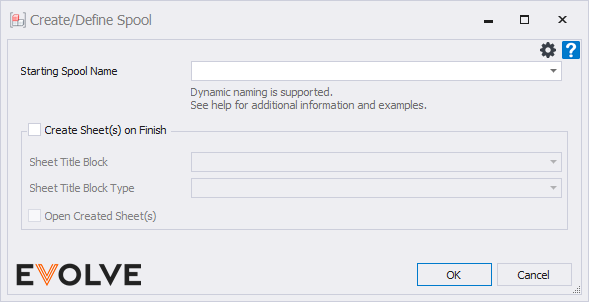
- Starting Spool Name combo box - The value specified will be applied to all spools created in the session. While the name may be alphanumeric, it must end with a numeric value.-*DefaultText*-
- Create Sheet(s) on Finish checkbox panel - If enabled, eVolve will create the sheets for the defined spool(s) on finish using the title block defined in step 3. If disabled, the spool sheets may be created within the Prefab Manager.-*DefaultText*-
- Sheet Title Block menu - If Create Sheet(s) on Finish is enabled, the selected Title Block will be applied to all defined spools.-*DefaultText*-
- Sheet Title Block Type menu - If applicable, this field is used to define the type of the selected title block family.-*DefaultText*-
- Open Create Sheet(s) checkbox - if enabled, all created sheets will open after completing the session.-*DefaultText*-

Tips and Tricks
- Items listed here should provide users with an easier way of doing something or to make something easier to do.-*DefaultText*-
Best Practices
- Items listed here should be a practice that has been proven to work better than other methods.-*DefaultText*-
- These practices should stand the test of time.-*DefaultText*-

Videos
To embed a video (delete these instructions before publishing)-*DefaultText*-
1. From the toolbar, click Blocks, then click Embed Block.-*DefaultText*-
2. From the Insert Embed screen, paste the desired URL into the URL field and click Embed.-*DefaultText*-

