Project Setup

Project Setup
The Project Setup feature allows administrators to configure, manage, and distribute EVOLVE settings, user roles, and project profiles to standardize workflows across projects.

When to Use
Project Setup is useful for Administrators and Power Users to:
- Define and distribute standardized configurations across user roles
- Define and distribute standardized configurations across projects
- Reduce setup time for new projects and new users
- Ensure consistency across projects and users
Accessing Project Setup

- Open the Resources panel
- Select the Project Setup button
User Role Profile tab
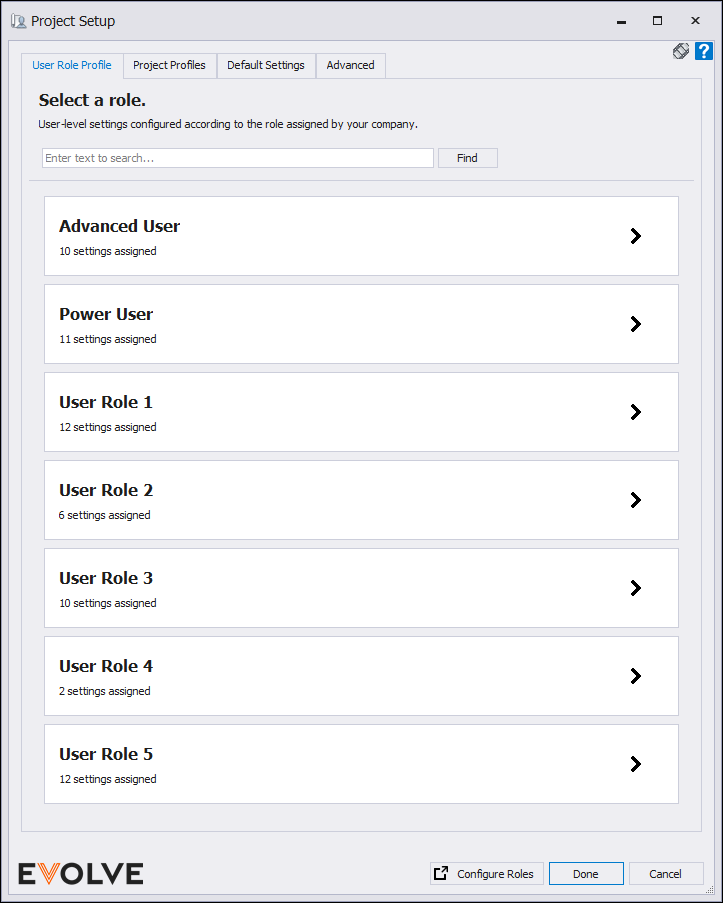
For Admins and Power Users, provides user settings upload options.
- Select a user role
- Click Assign Settings
- Select the desired settings
- Click Publish
- Once published, users assigned to that role can load the selected settings.
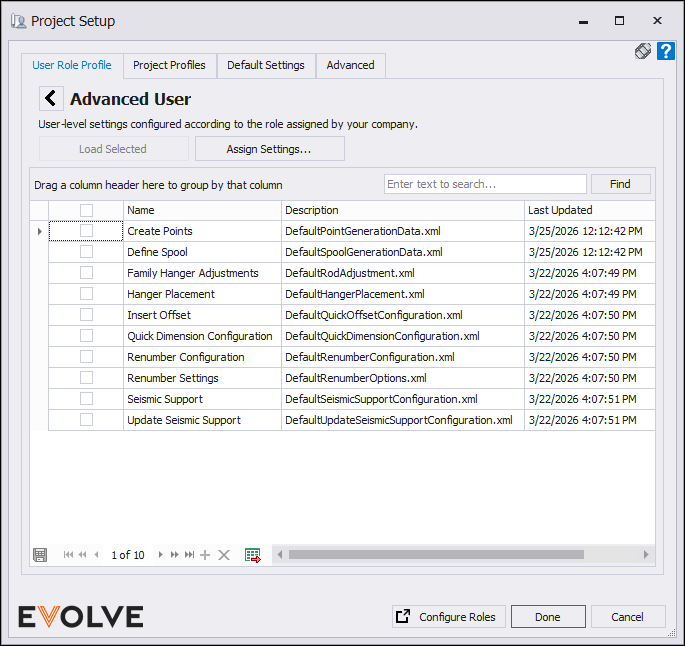
For Advanced Users and User Roles 1-5, provides user settings download options.
- Select the role that is currently displayed
- Select the applicable settings
- Click Load Selected
- Once loaded, the user settings will have been applied.
Project Profiles tab
Project Profiles act as collections of settings that can be applied to specific project types.
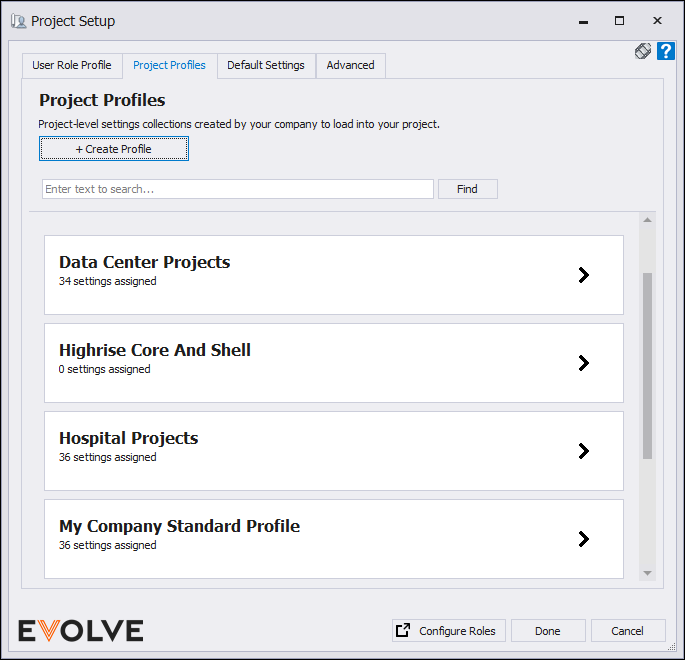
Creating a Project Profile
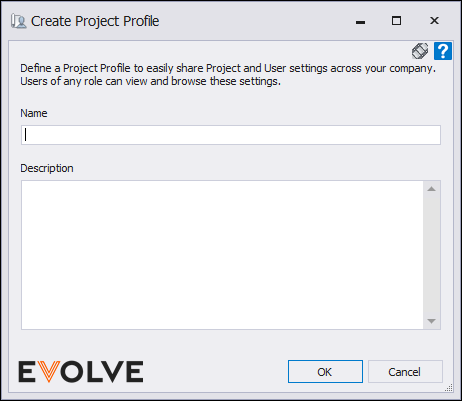
- Navigate to the Project Profiles tab
- Click Create Profile
- Enter a name and description
- Click Create
Assigning Settings to a Profile
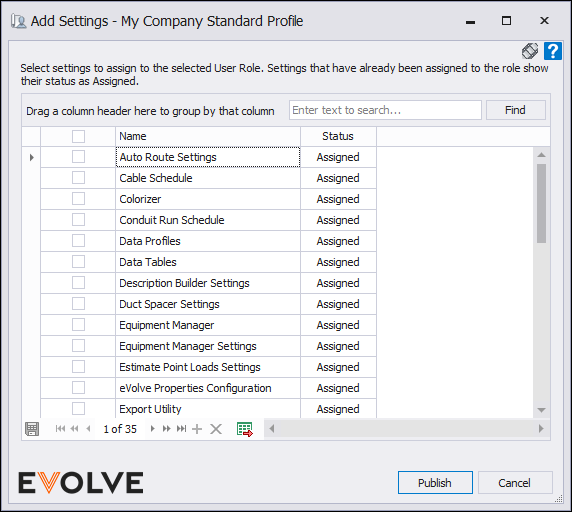
- Select the desired profile
- Click Assign Settings
- Choose settings from the current project
- Click Publish
Applying a Project Profile
This allows you to quickly apply consistent configurations across similar projects.
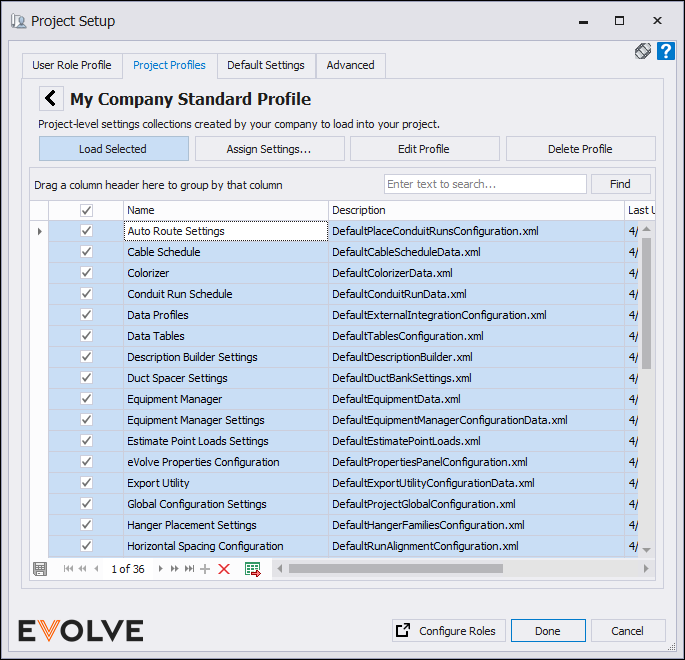
- Open Project Setup in another project
- Select the desired profile
- Choose the settings
- Click Load Selected
Default Settings tab
The Default Settings tab contains EVOLVE’s baseline project and user settings.
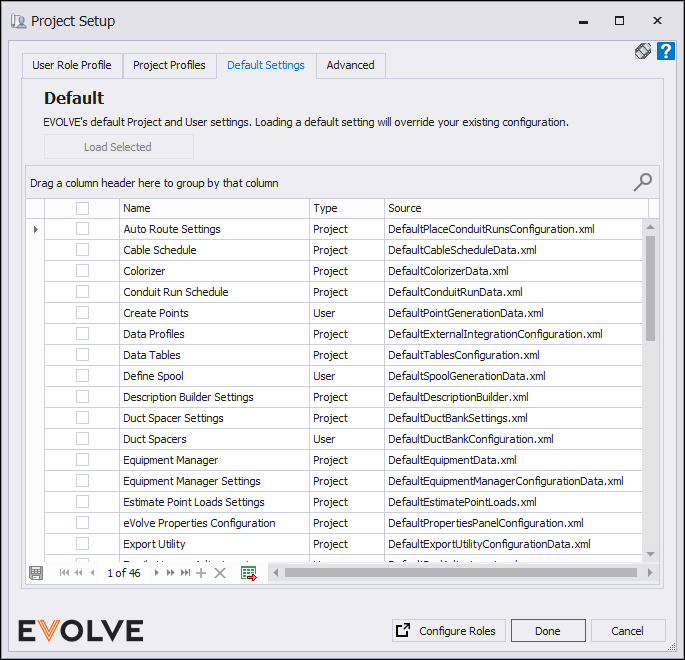
- These represent the standard configuration files
- They can be used as a starting point for customization
Advanced Settings tab
The Advanced tab provides additional control for distributing configurations.
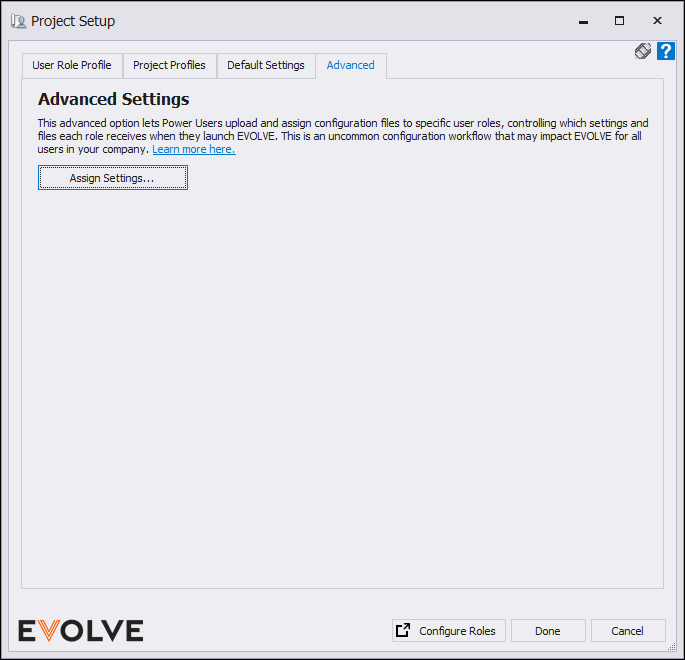
- Upload and manage configuration files
- Assign settings to specific roles
- Define file storage locations
- Overwrite existing configurations if needed
This is typically used for more advanced workflows where settings are managed and distributed from a centralized source.
Additional Notes
- Settings are only updated when changes are made; if no updates occur, the last modified date remains unchanged
- Role-based access determines which settings users can view and load
- Profiles can be edited or deleted as needed
