Restore Configurations

Restore Configurations

Summary
This tool allows users to restore selected project defaults for one or multiple settings within the project.
- eVolve tab ⮞ Resources panel ⮞ Settings ⮞ Restore Configurations in drop down menu


Usage
- From the eVolve ribbon, in the Resources panel, click Settings and select Restore Configuration in the drop down menu and click OK.
- From the Restore Configurations window, select the configuration/s you would like to restore to their default state and click Restore.
- Finally in the next Restore Configurations window type in Confirmed into the text box to confirm you want the configuration data to be overwritten and click OK.

Window Overview

Load Configurations panel
Displays the available configuration files loaded into the project and the corresponding checkbox next to it that allows you to select all or specific files to restore.
- Configuration Name column - Displays the feature name associated with the configuration file.
- Configuration Scope column - Displays whether the configuration file applies to the project or the user.
- Loads from File Name column - Displays the configuration file name.

Restore Configurations From panel
Displays the available configuration file source options.
- Standard method radio button - Restore using the default behavior for determining which configuration is applicable.
- eVolve Electrical factory defaults radio button - Restore using the factory defaults which ship with this product.
- Specified Directory radio button - Selected configurations will search within this directory first for the respective 'Loads From File Name'.
- Browse button - triggers a Browse For Folder pop-up to navigate to a desired configuration file pathway.
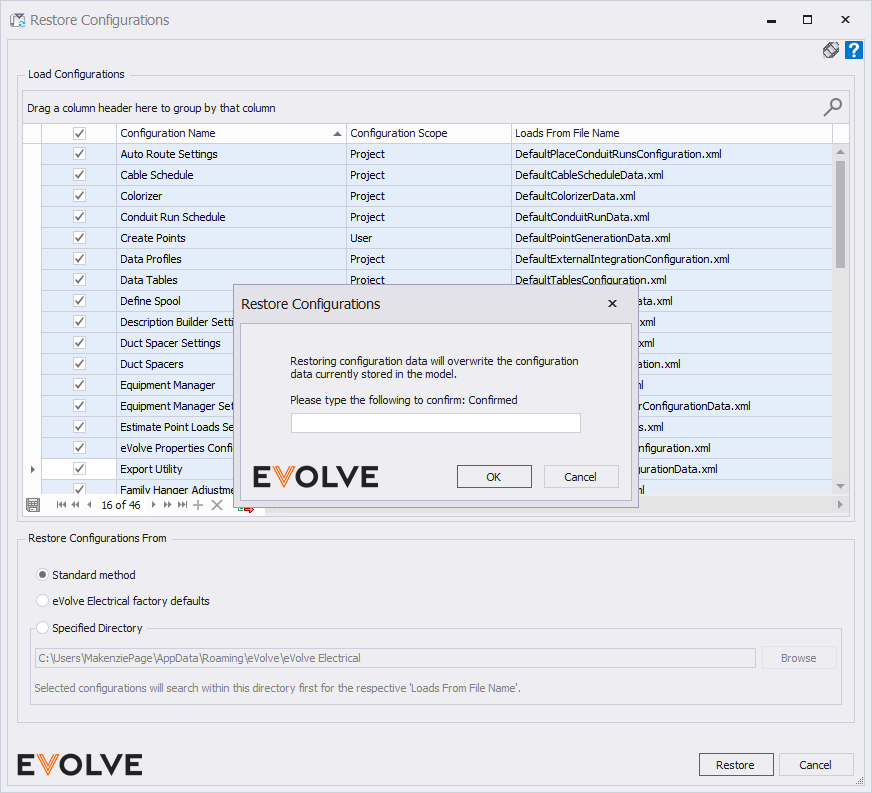
- Confirmation to Restore Configurations popup - Type "Confirmed" in the provided text box to overwrite the previously selected configuration files.

Tips and Tricks
- Please verify with other members of your team prior to overwriting any of these configurations as it could cause issues if not intended.
Best Practices
- Exporting All Configuration files from Workstation Settings would be a good workflow in case you ever need to restore after overwriting.

